> For the complete documentation index, see [llms.txt](https://docs.divmagic.com/llms.txt). Markdown versions of documentation pages are available by appending `.md` to page URLs; this page is available as [Markdown](https://docs.divmagic.com/mcp/getting-started.md).
# Getting started
Follow the step-by-step instructions to connect DivMagic MCP to your agent
### Generating an MCP Key
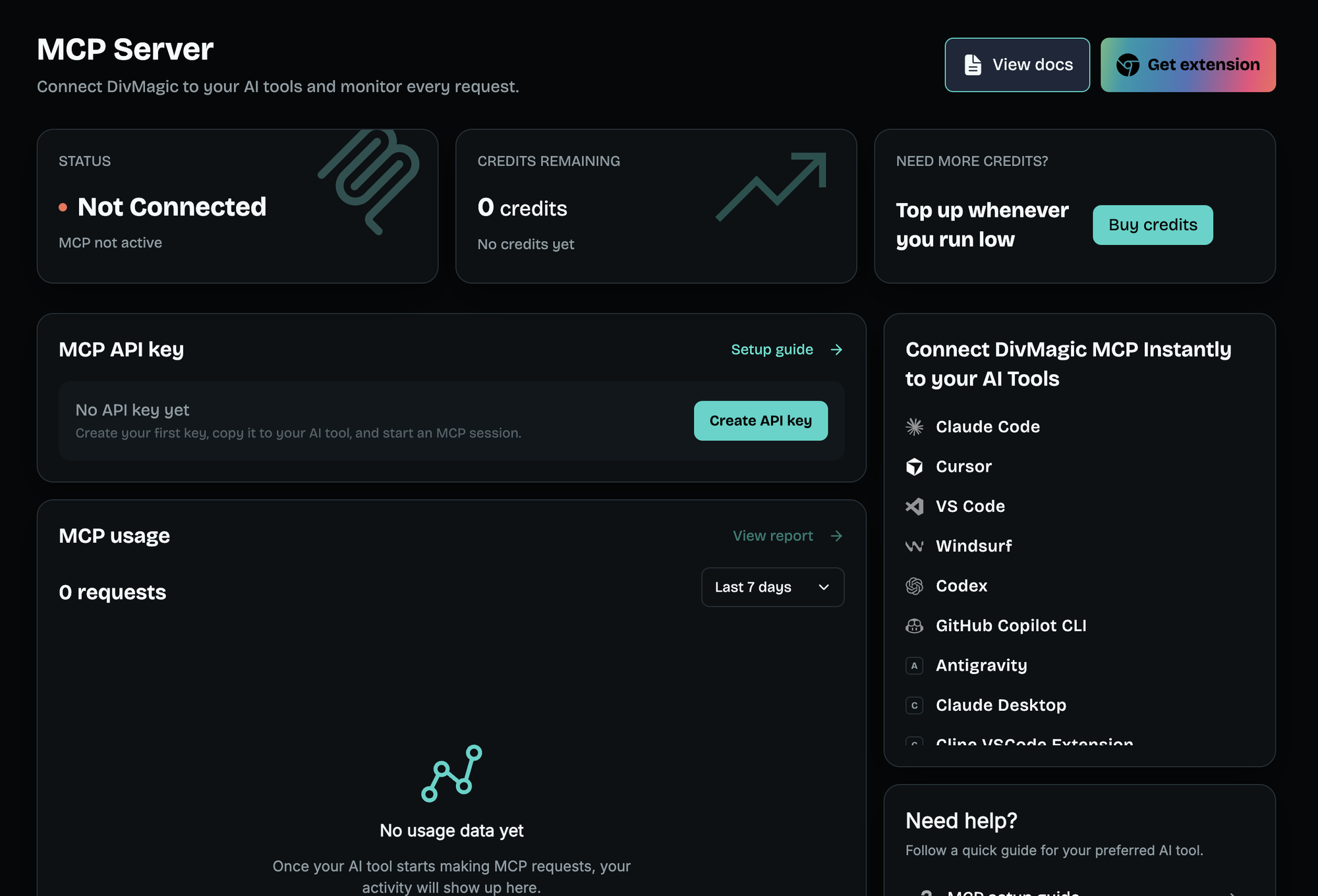
To use the MCP server, you need an MCP key. This is **not** the same as your API key. The dashboard calls it *MCP API key* and it lives on the **MCP Server** page; the separate **API Keys** page holds REST API keys, which do not authenticate here.
1. [**Log in**](https://divmagic.com/login) to your account
2. Navigate to the Dashboard
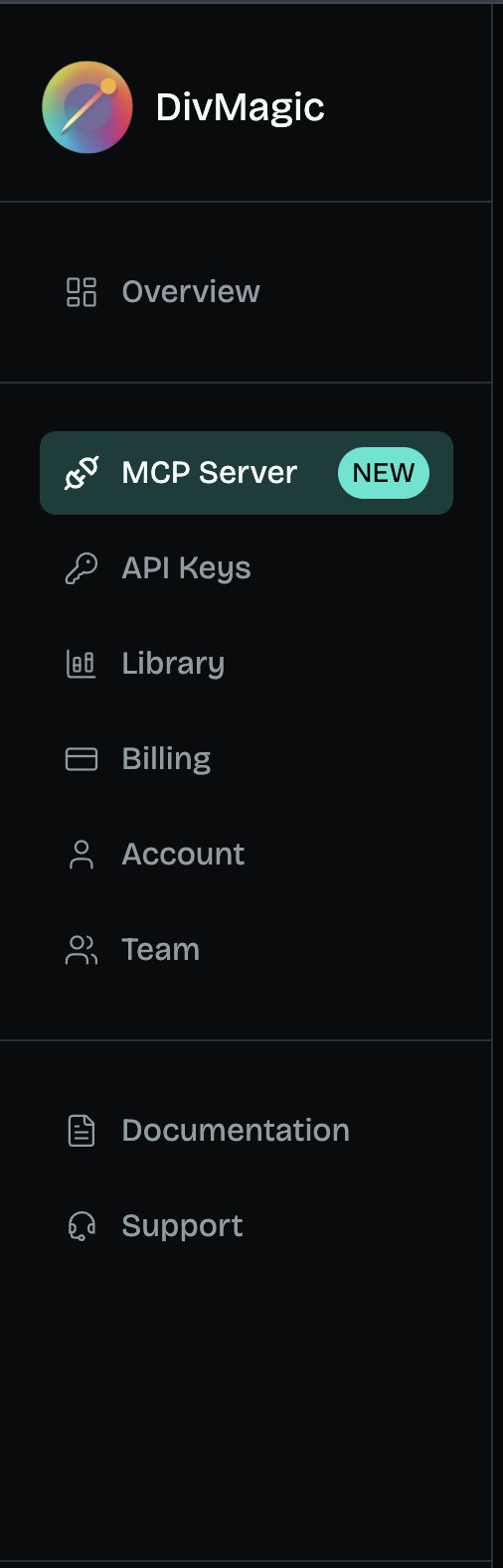
3. On the side menu, click on **MCP Server**
4. In the **MCP API key** card, click **Create API key**
5. Copy the key immediately
Keys look like `dvmcp_…`.
{% hint style="warning" %}
The key is shown **once**. There is no way to display it again — losing it means issuing a new one, and issuing a new one revokes the old key instantly.
{% endhint %}
### Get credits
A new key is **inactive** on its own. Until the account has MCP credits, every call is refused with:
```
403 This MCP key is not active.
Buy MCP credits at https://divmagic.com/dashboard to start using it.
```
If **Status** reads *Not Connected* or **Credits remaining** is 0, buy credits with the **Buy credits** button on the **MCP Server** page.
Buying credits activates the key you already hold — you do not need to create a new one.
### Connecting your client
One command sets up every coding agent on your machine:
```bash
npx divmagic-mcp
```
It asks for your key, checks it against the server before touching anything, shows which agents it found, and writes only the ones you pick.
```
Checking the key… works.
Found 3 on this machine. Which should get DivMagic?
1. Claude Code
2. Cursor
3. VS Code
Which? (numbers separated by commas, or "all") all
```
**Twenty-two agents** are supported — Claude Code, Claude Desktop, Cursor, VS Code, Windsurf, Codex, Zed, Goose, Gemini CLI, Cline, GitHub Copilot CLI, Antigravity, OpenCode, Kiro CLI, Grok Build and more. Run `npx divmagic-mcp --help` for the full list.
| Option | What it does |
| ------------------ | -------------------------------------------------------------------------- |
| `--key ` | Your MCP key. Asked for if not given. |
| `-a, --agent ` | Install only to this agent. Repeatable. |
| `--all` | Install to every supported agent, not only the ones found on this machine. |
| `-y, --yes` | Take the detected agents without asking. |
| `--endpoint ` | Override the server address. |
| `-h, --help` | Show the options and the agent list. |
Non-interactive, for a scripted setup:
```bash
npx divmagic-mcp --key dvmcp_YOUR_KEY -a cursor -a claude-code -y
```
Restart any agent it changed — none of them reread their config while running.
{% hint style="info" %}
The installer only edits config files. There is no DivMagic software running on your machine: the server runs on our side and your agent talks to it over HTTPS. Config writing is handled by [add-mcp](https://github.com/neon-solutions/add-mcp), which keeps up with where each agent stores its servers and in which format.
{% endhint %}
### Installing by hand
If you would rather not run the installer, the configuration is a few lines.
Most clients — Cursor (`~/.cursor/mcp.json`), VS Code (`.vscode/mcp.json`), Windsurf (`~/.codeium/windsurf/mcp_config.json`):
```json
{
"mcpServers": {
"divmagic": {
"url": "https://api.divmagic.com/v1/mcp",
"headers": { "Authorization": "Bearer dvmcp_YOUR_KEY" }
}
}
}
```
Claude Code has its own command:
```bash
claude mcp add --transport http divmagic https://api.divmagic.com/v1/mcp \
--header "Authorization: Bearer dvmcp_YOUR_KEY"
```
Claude Desktop's connector screen expects OAuth and has nowhere to put a key, so bridge it through stdio:
```json
{
"mcpServers": {
"divmagic": {
"command": "npx",
"args": [
"mcp-remote",
"https://api.divmagic.com/v1/mcp",
"--header", "Authorization: Bearer dvmcp_YOUR_KEY"
]
}
}
}
```
### Verifying the connection
Restart your client, then ask the agent for something simple:
> copy the hero section from example.com
If the connection is live, the agent calls `copy_component_from_url` and markup comes back. If it reports a `403`, the key is valid but the account has no credits yet — see [Get credits](#get-credits) above.
### Next
{% content-ref url="/pages/pSgQSIbyjrriCKphsmLs" %}
[Tools](/mcp/tools.md)
{% endcontent-ref %}
{% content-ref url="/pages/bYYPAhYPZ1MrDLxkpqQ5" %}
[How it works](/mcp/how-it-works.md)
{% endcontent-ref %}